Compliance Features
Performing configuration checks
Trento provides configuration checks that ensure your infrastructure setup adheres to our or other vendor’s Best Practices, and it does not diverge with time. Configuration checks are available for HANA clusters, ASCS/ERS clusters and hosts. The following procedure is specific to a HANA cluster. The procedure for an ASCS/ERS cluster or a host would be exactly the same, except it starts from the corresponding Details view.
-
Log in to Trento
-
In the left panel, click Cluster.
-
In the list, search for a SAP HANA cluster.
-
Click the desired cluster name in the Name column. The Details view opens.
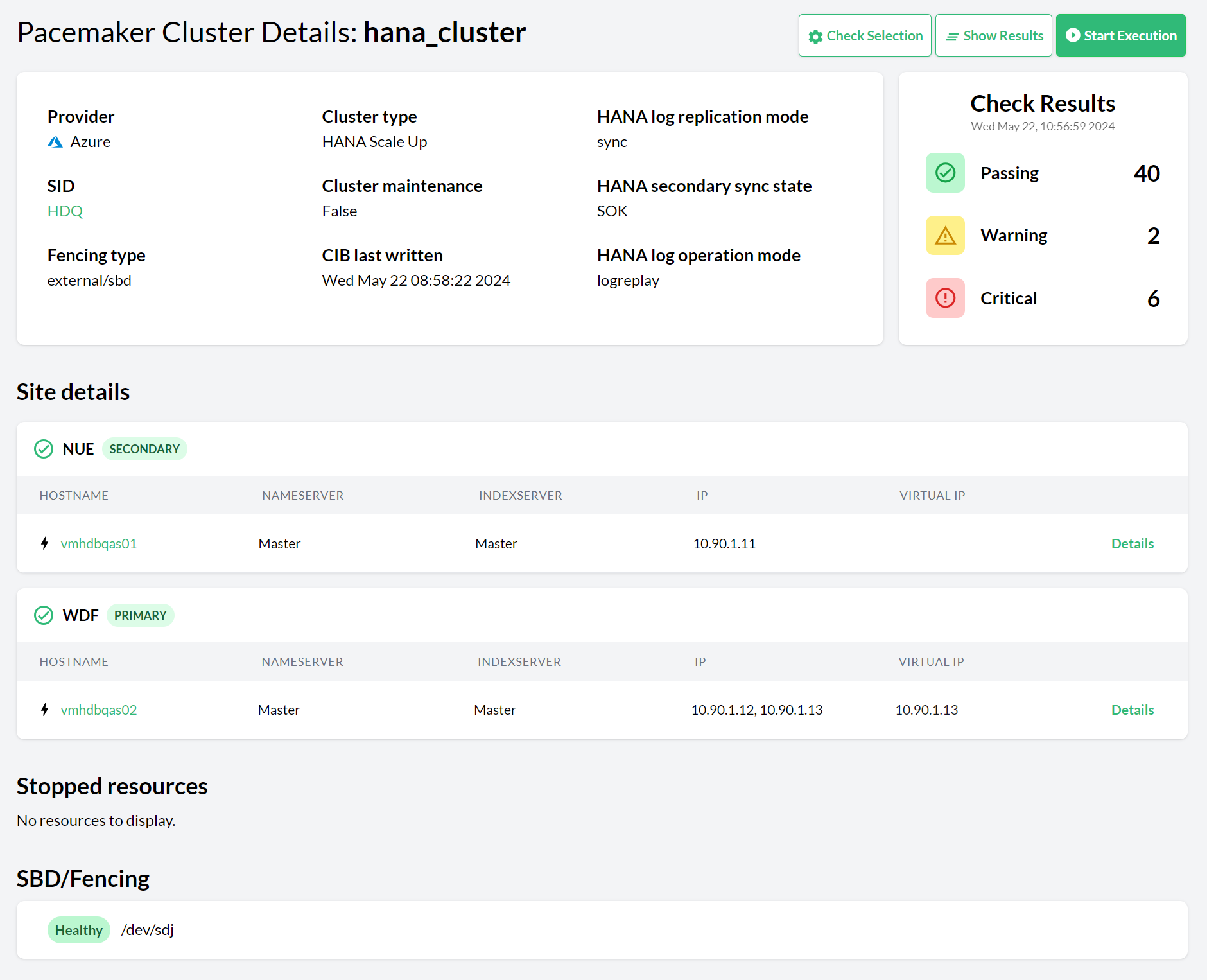 Figure 1. Pacemaker cluster details
 -
Click the Settings button to change the cluster settings of the respective cluster. For checks to be executed, a checks selection must be made. Select the checks to be executed and click Select Checks for Execution.
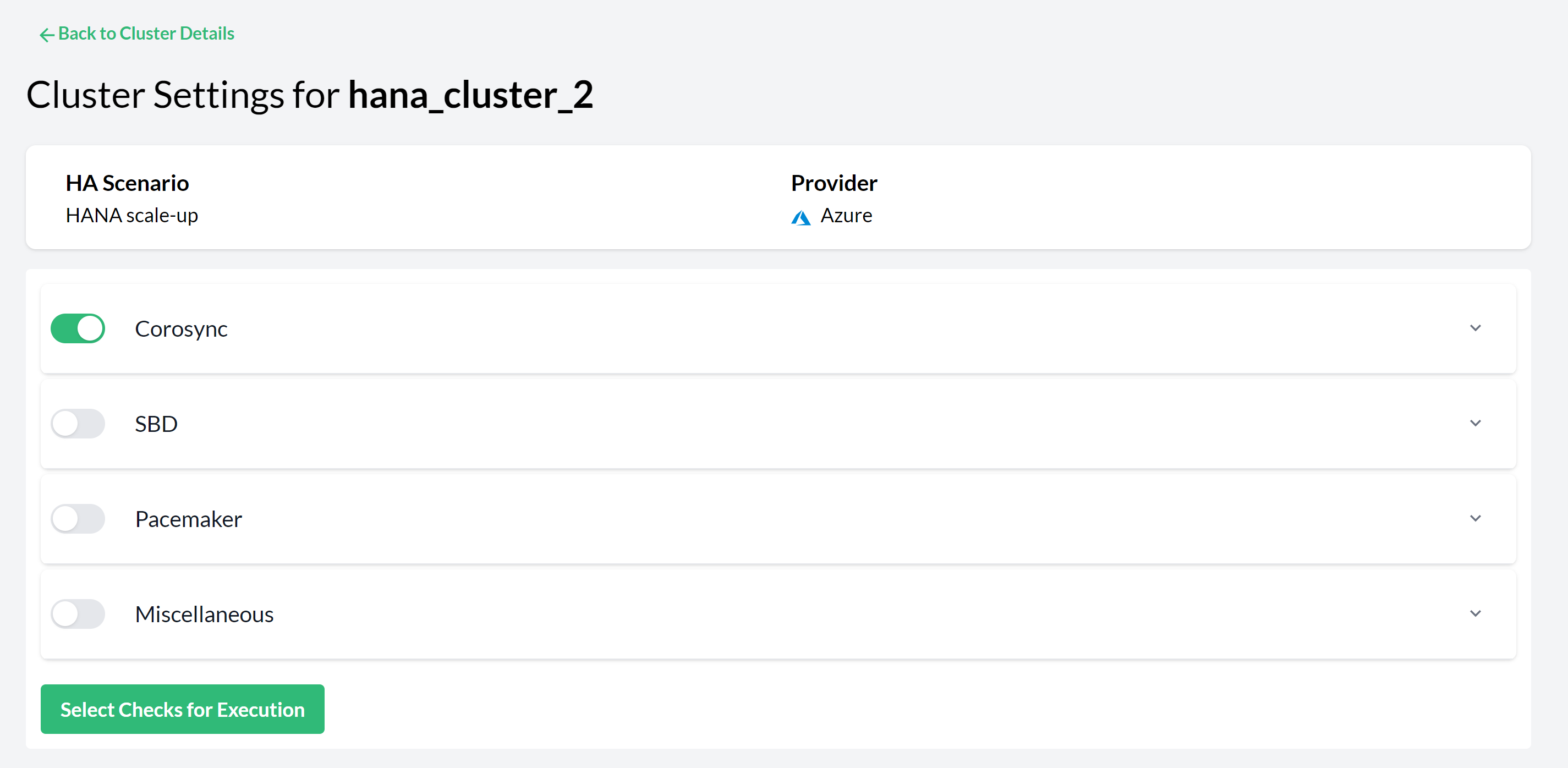 Figure 2. Pacemaker Cluster Settings—Checks Selection
 -
You can then either wait for Trento to execute the selected checks or trigger an execution immediately by clicking the button in the Checks Selection tab.
-
Investigate the result in the Checks Results view. Each row in the view displays a check ID, a short description of the check and the check execution result. Click on a row to open a section that provides information about the execution on each node of the cluster.
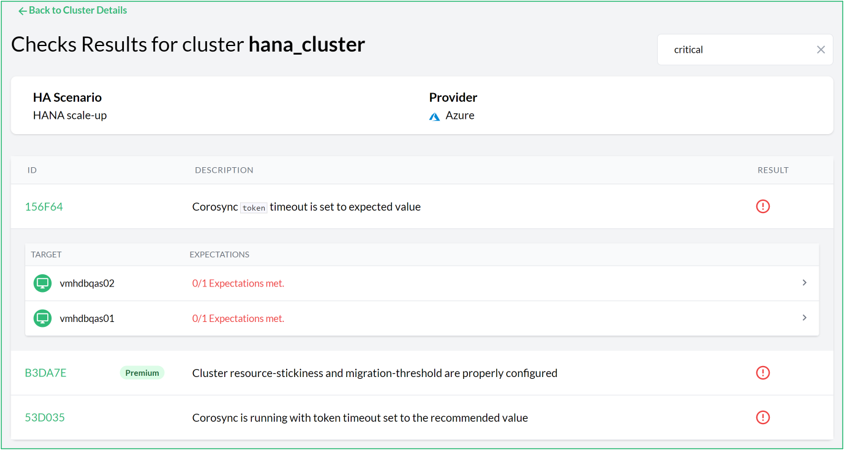 Figure 3. Check results for a cluster
The result of a check execution can be passing, warning, critical:
-
Passing means that the checked configuration meets the recommendation.
-
Warning means that the recommendation is not met but the configuration is not critical for the proper running of the cluster.
-
Critical means that either the execution itself failed (for example, a timeout) or the recommendation is not met and is critical for the well-being of the cluster.
Use the filter to narrow the list to specific results (for example, critical).
-
-
Click a check’s link to open a modal box with the check description. This displays an abstract and a possible solution to the problem. The References section contains links to the documentation from the different vendors for more context when necessary. Close the modal box by pressing the Esc key or click outside of the box.
For each unmet expected result, there is a detailed view with information about it: what facts were gathered, what values were expected, and what was the result of the evaluation. This helps to understand why a certain configuration check is failing:
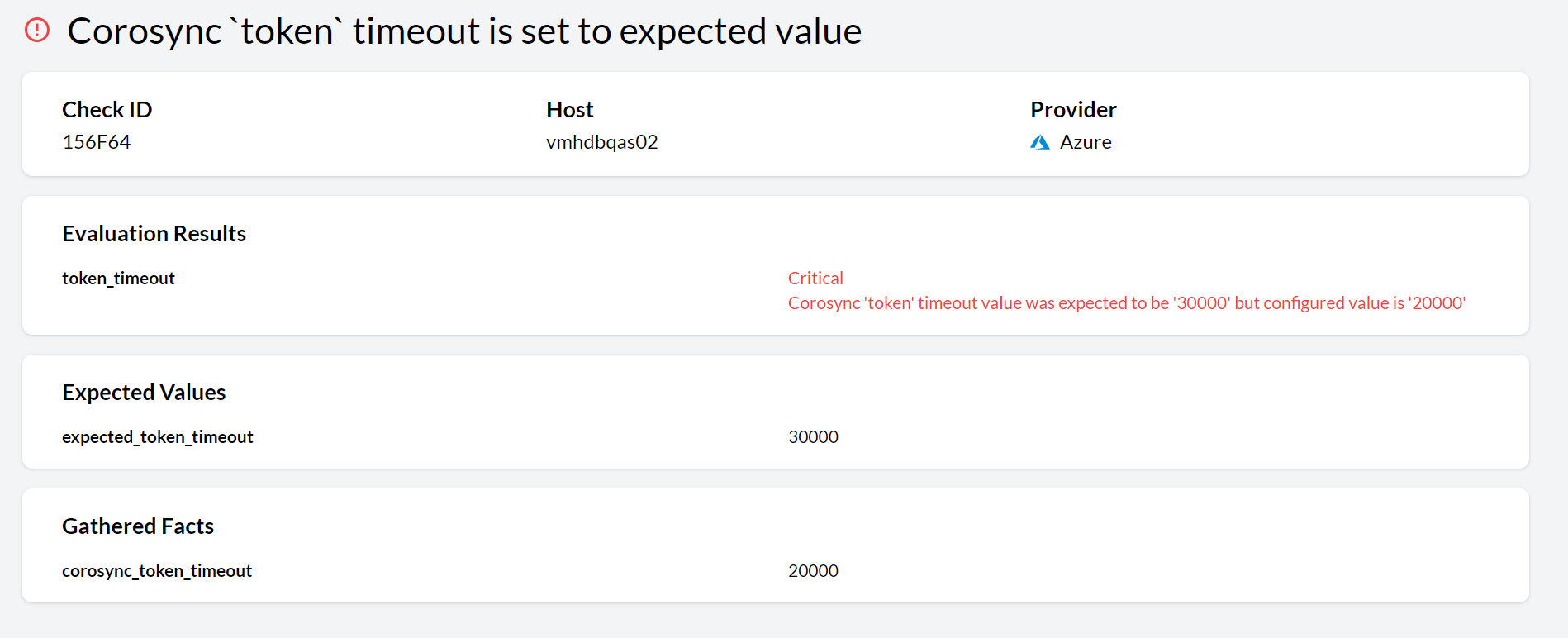 Figure 4. Unmet expected result detail view
When checks for a given cluster have been selected, Trento executes them automatically every five minutes, updating the results. A spinning check execution result icon means that an execution is running.
Checks Customization
Overview of checks Customization
Trento makes it possible to adjust expected check values to match target-specific requirements. This can be done directly through the Trento Web console without modifying the original check or impacting other targets.
The Trento web console receives a check catalog from Wanda. In the check selection view of a specific target, you can see all available check categories. Click on a category to expand the list of checks associated with it. If you have the required permissions, a settings icon appears to the right of a customizable check. Click on the settings icon to open a modal window where you can adjust check values.
The check customization modal includes the following elements:
-
Selected Check ID.
-
Check description.
-
Warning message that neither Trento nor SUSE can be held responsible for system malfunctions caused by deviations in the target configuration from best practices.
-
A list of all customizable check values. Each value includes a value name with the original default check value and an input field with the current customized or default value.
-
The current target-specific provider.
-
Save, Reset and Close buttons at the bottom.
The Save button is disabled by default. The button is enabled when the user checks the warning and modifies a value. The custom values are stored in the Wanda’s database, so they persist across system reboots.
The Reset button is enabled only when the check has been customized. Use the button to reverse the changes.
A Modified Pill indicator next to the check ID indicates that the values have been customized. A Reset icon next to the Settings icon can be used to revert to default values.
Target-specific check customization
A check is always executed on a target, which can be a host or a cluster. Users can customize check values specific to the target environment to ensure optimal system performance. Customizations are target-specific, and they do not affect other targets or the original default check values.
Required permissions
Only admin users and users with the all:checks_customization permission can customize checks. The customization button in the Trento Web console is not shown for users without this permission. If a check has been modified, the modified Pill is shown for all users.
Customizable checks
All checks with the following value types are customizable:
-
String
-
Number
-
Boolean
User input is validated to ensure that the input value matches the expected type before allowing to save the custom values in Wanda’s database. If the input type is incorrect or mixed, the customization fails, triggering a toast notification, that checks customization failed and a warning message in the modal itself.
Check customization persistence
Customized check values are persistently stored in Wanda’s database. This ensures that any modifications made by users are consistently applied across subsequent executions. Additionally, customized values remain in effect even after system restarts or updates, ensuring continuous adherence to target-specific configurations.